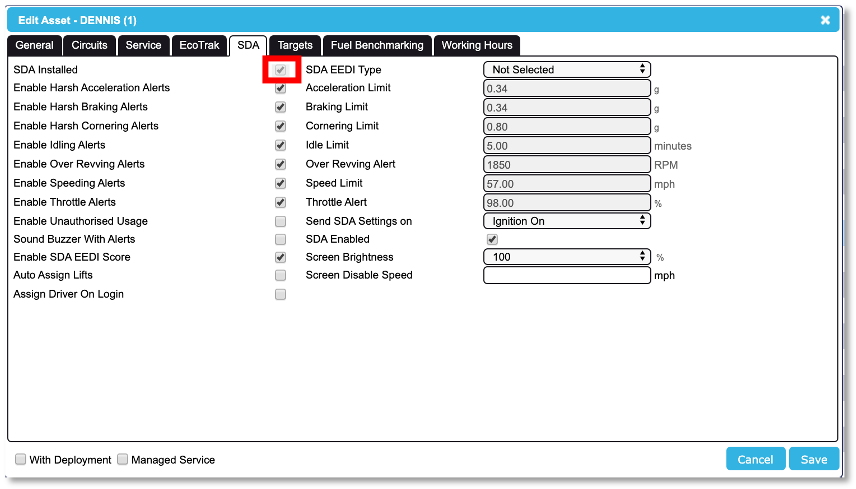
You can check if a vehicle has a Safer Driving Assistant (SDA1) installed and operational from within the CMS SupaTrak web application.
In order to do this, log into your account as normal and select the ‘Maintenance’ page. Then select ‘Assets + Devices’ from the tabs on the left hand side of the screen and click onto 'view Assets'.
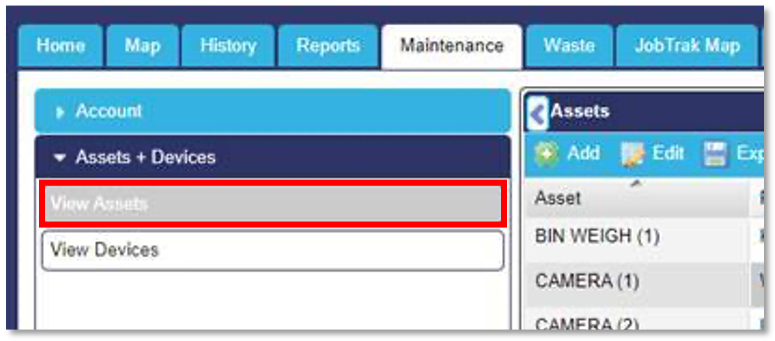
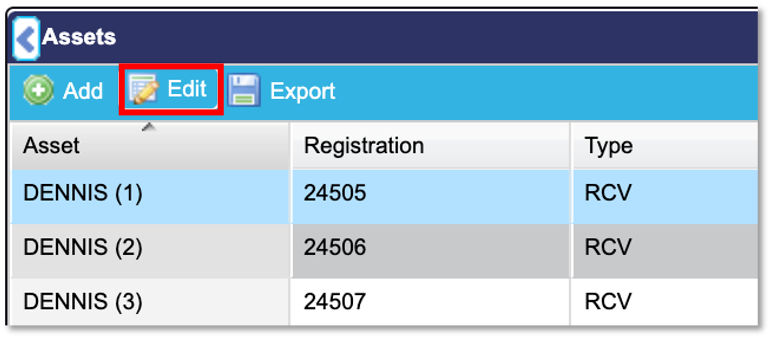
All assets should now be displayed. Select the asset you would like to make this change to (In the screen shots below we are going to make this change to the asset called ‘Dennis (1)’, you will know that the asset has been selected because it will be highlighted. Next you need to select the ‘Edit’ button shown in the screen shot below.
You will now see a pop up box which will display further information about that asset. There will be a number of tabs across the top of the box, select the ‘SDA’ tab.
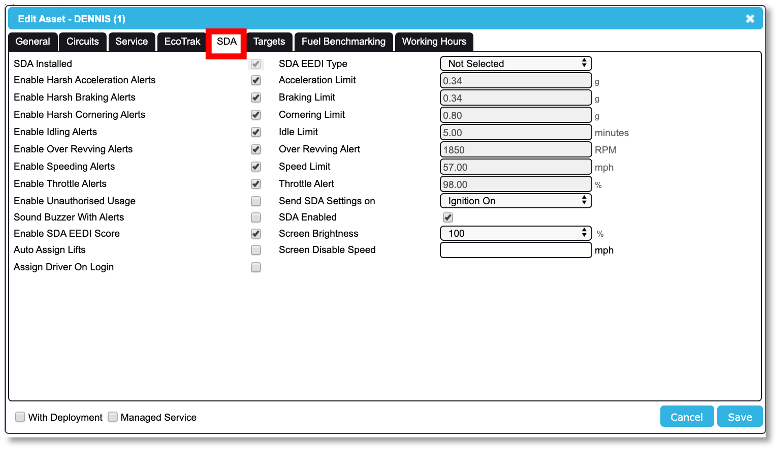
When the ‘SDA’ tab has been selected, you will be able to see whether the asset has an SDA installed and operational by checking the tick box next to ‘SDA Installed’ (as shown in the screenshot below). If the box is ticked, the vehicle’s SDA is installed and operational.