In order to add, edit or remove street special instructions, users should navigate to the ‘Waste’ tab located at the top of the page before clicking onto 'Rounds' and then selecting 'View Rounds'. This will show you all of the rounds saved onto your account:
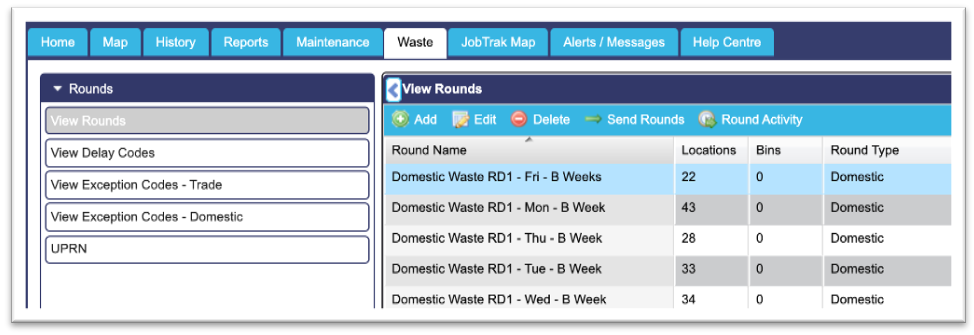
From here, users can select the round that they wish to edit, by left clicking onto it (the round will then be highlighted blue as shown in the example above). Users should then click onto the ‘Edit’ button at the top of the list which will bring up a pop-up window like the one shown below:
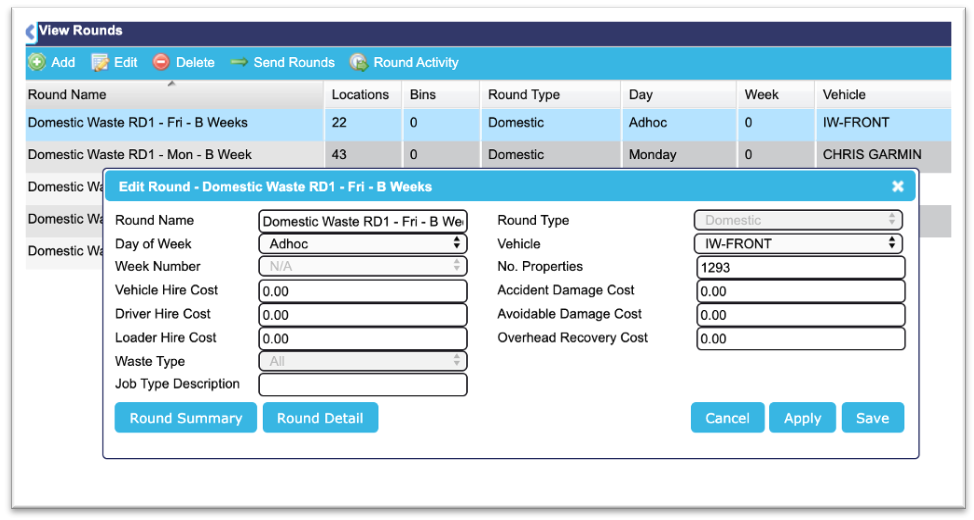
Next, users should then click onto the ‘Round Detail’ button at the bottom of this pop-up window, this will show all locations within this round. The screenshot below shows an example of how this will look:
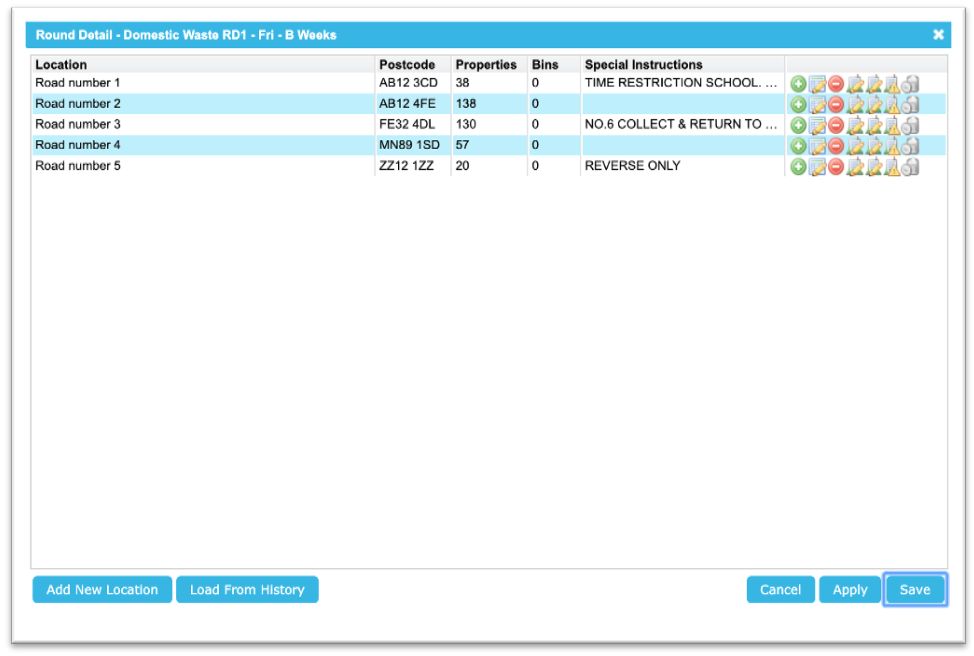
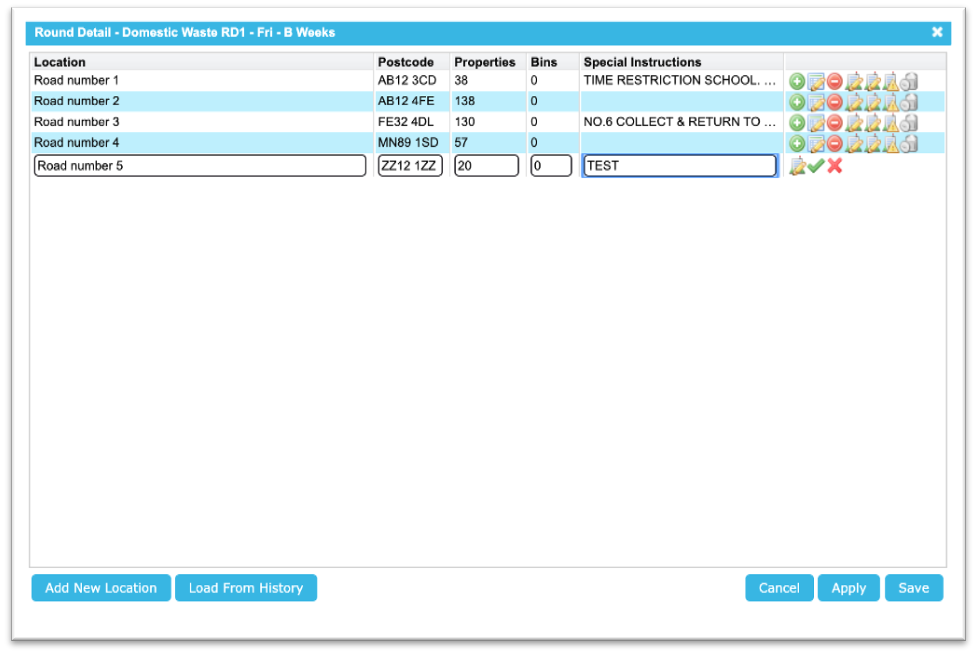
In order to add, edit or remove street special instructions, i.e. change road number 5 so that it no longer states "REVERSE ONLY", users simply need to click onto the second icon against that specific street (image shown below but its between the green plus and the red minus);

Users will then be given the ability to type into the sections shown below. Once completed, simply click onto the green tick and then click save. The pop up window will then be closed and the round updated.
NB: Please note that all changes made to the rounds will be permanent and it will not be possible for these to be reversed. As a result, if you are unsure or need any help with making these amendments then please contact our Support Team to discuss these further.