To view footage directly from the SD card, you will need to download the PC Viewer Software provided by SmartWitness. The steps below explain how to do this:
- Firstly, insert the SD card into your PC (if your computer does not have an SD card slot, please use a USB SD card reader) and open “My Computer” on your PC.
- Right-click the “FHDRM” drive within ‘My Computer’ and select “Open”.
- Double click “setup.exe” in the folder named “pcsw”.
- Select your required language and then follow the dialog box prompts.
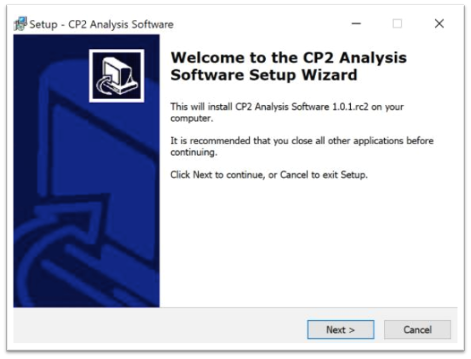
- Following this, the CP2 PC Viewer icon will be displayed on your desktop.
You will then need to complete the setup by going through the software settings page, as shown below:
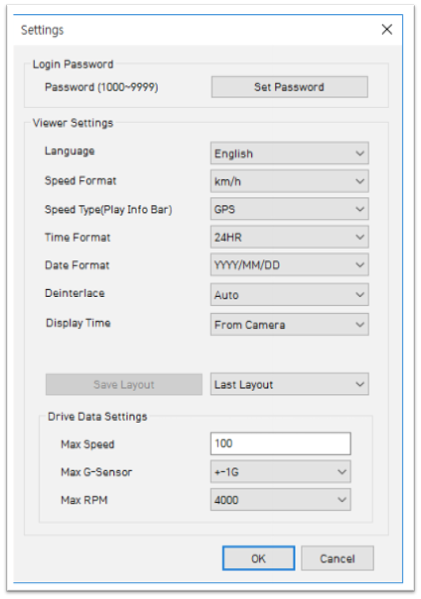
Firstly, click the ‘Set Password’ button, and set your password to any number between 1000-9999.
The ‘speed’ & ‘date’ formats will be set automatically according to your PC Windows settings. However, these can be changed if required.
The ‘Display time’ option allows you to choose which tie you would like to see – either the recorded time by your CP2 or your PC local time.
Finally, the layout dropdown list allows to choose from the following two options:
1. Last Layout: The program will launch with the same layout as it was when it was closed.
2. Default Layout: The program will launch with the Default Layout Drive Data Settings.