IMPORTANT: Please note that JobTrak v4 is subject to change during the BETA test process.
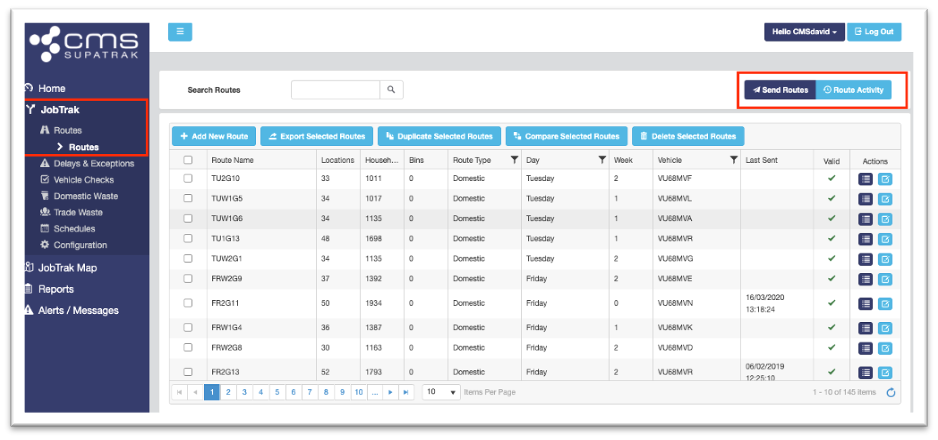
To view any exceptions recorded against a route, navigate to the ‘Routes’ section by using the menu at the left-hand side of the screen.
JobTrak > Routes > Routes
Once in the ‘Routes’ section, select the ‘Route Activity’ button to the top right-hand corner of the page, as shown below:
Clicking the ‘Route Activity’ will bring a pop-up window that allows users to view any route activity over a specified time period – as shown below:
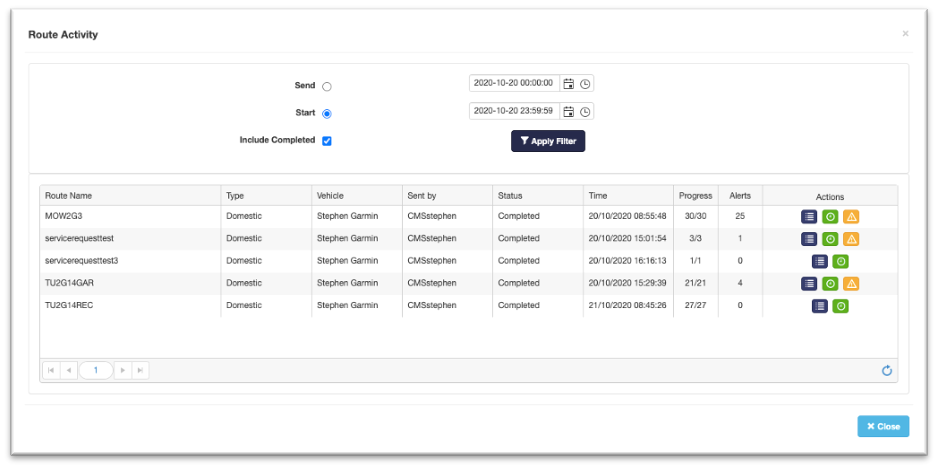
Input the time period by using the calendar icons at the top of the window and click ‘Apply Filter’ to show any routes that have been sent to a vehicle within that timeframe.
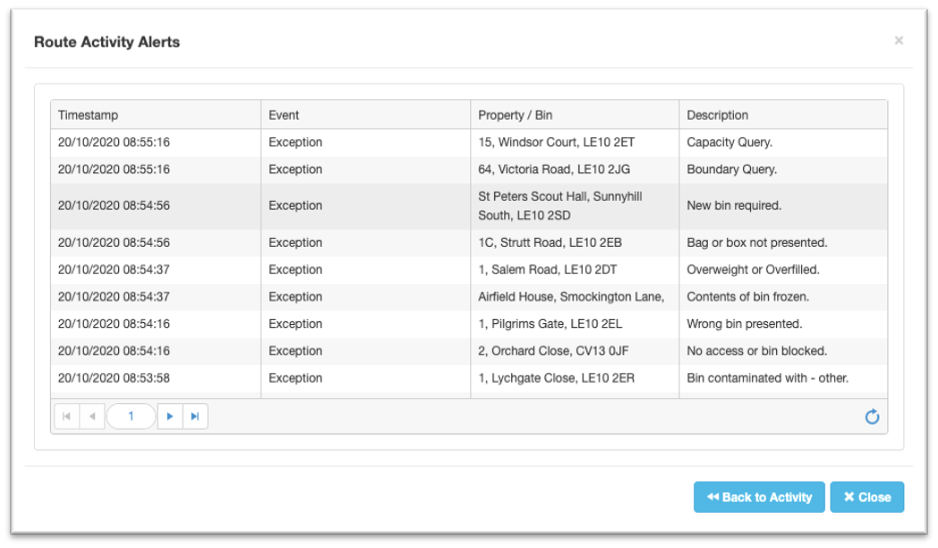
Once the routes have loaded, click the yellow triangle  next to a route that has exceptions logged against it, to view more detail about the exceptions logged. These will appear in a pop-up window, as shown below: