IMPORTANT: Please note that JobTrak v4 is subject to change during the BETA test process.
To send an ad-hoc JobTrak route, users should navigate to the ‘Routes’ section by using the menu at the left-hand side of the screen.
JobTrak > Routes > Routes
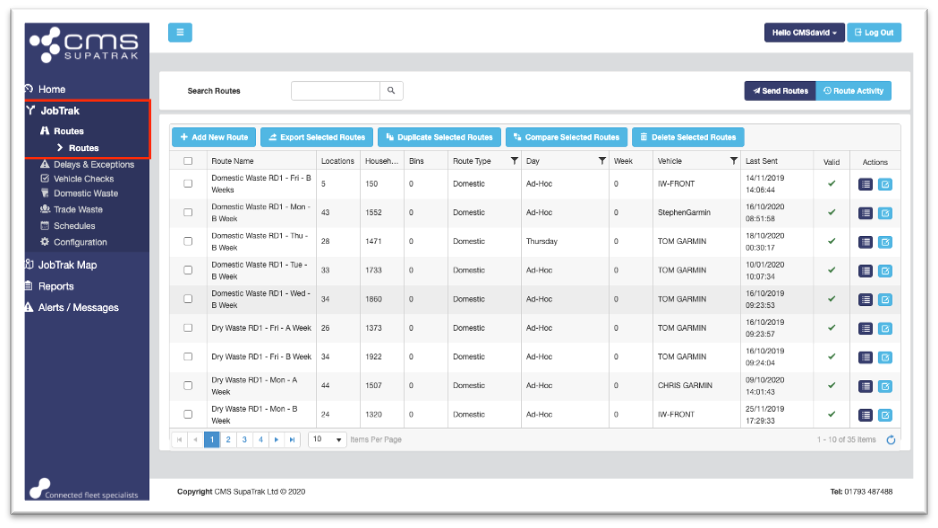
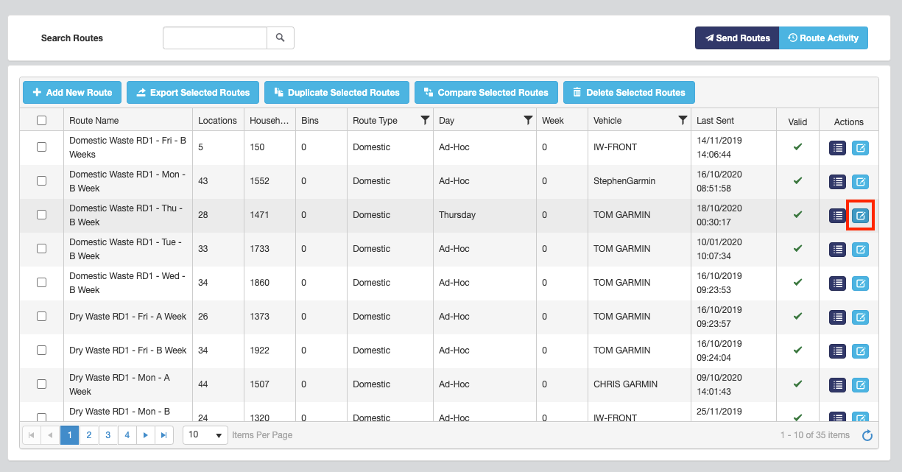
First of all, you will need to ensure that the route you are sending has the day set as ‘ad-hoc’. To check or change this, locate the route you would like to send as ‘ad-hoc’ and click the ‘Edit’ button to the right of the screen.
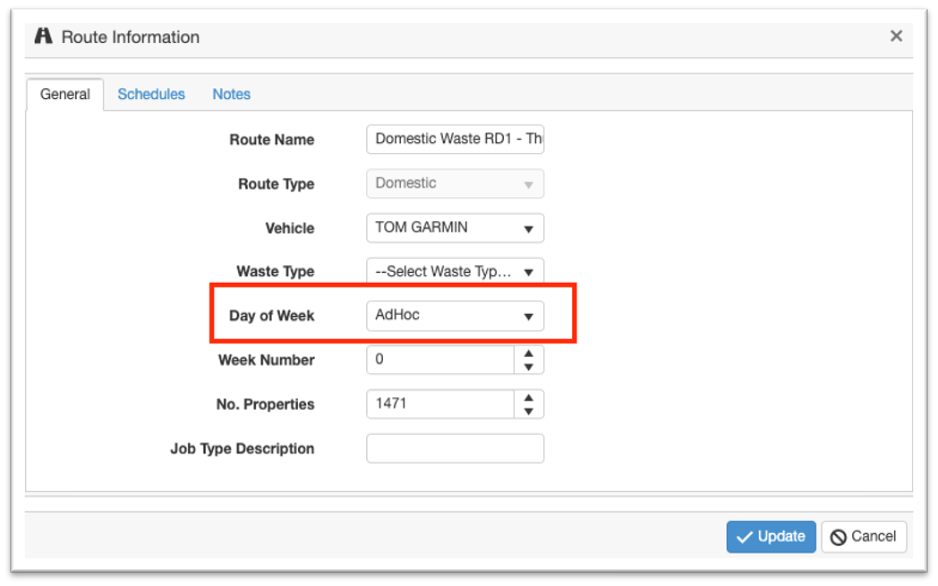
This will bring up the pop-up window shown below, here you can select the drop-down list next to ‘Day of Week’ and choose the option ‘Ad-hoc’. Click the ‘Update’ button to make this change, this will close the pop-up window.
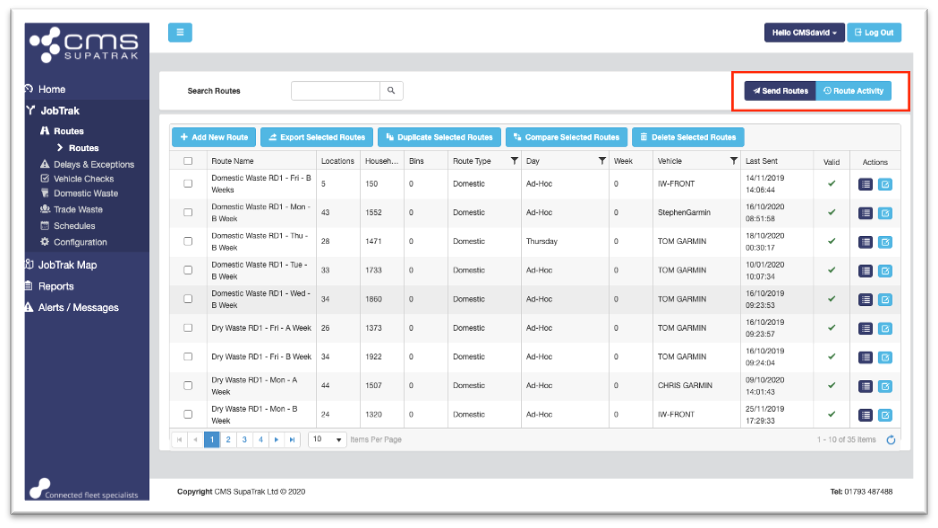
The next step in sending the route is to click the ‘Send Routes’ button to the top-right hand corner of the ‘Routes’ page:
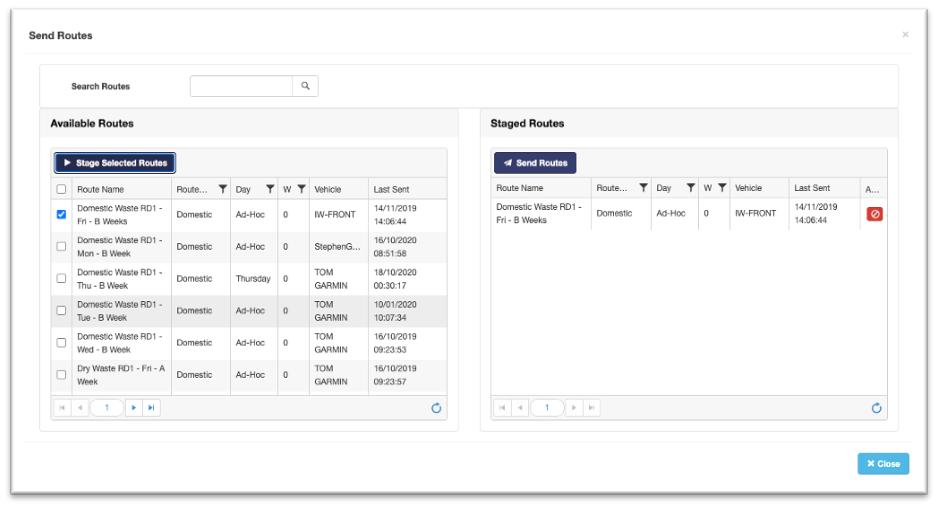
This will bring up the pop-up window shown below. The final step is to locate the route you would like to send from the list on the left-hand side of this pop-up window. Click the tick-box next to the route, then click ‘Stage Selected Routes’ – this will move the route to the right-hand side which will allow you to double check before sending.
To send the route, click the ‘Send Routes’ button in the pop-up window:
This will send the ad-hoc route to the Garmin device; you can then close the pop-up window.