IMPORTANT: Please note that JobTrak v4 is subject to change during the BETA test process.
Navigate to the reports section of the application. In the ‘Waste’ reports menu, select the ‘History’ report.
The History report can show multiple types of history. To view exceptions recorded against a JobTrak route, select ‘Waste Exceptions’.
Complete your report filters by selecting the date and time you wish to view, and the circuits or vehicles you want to search on. The search box can be used to type a registration if you are looking for a particular vehicle, or you can select vehicles by expanding the circuits by clicking on the arrows next to them.
Once happy with your filters, click on ‘Display on Screen’ and click ‘Go’. The report will then open up in a new window, showing you all the exceptions for the circuits/vehicles you have selected.
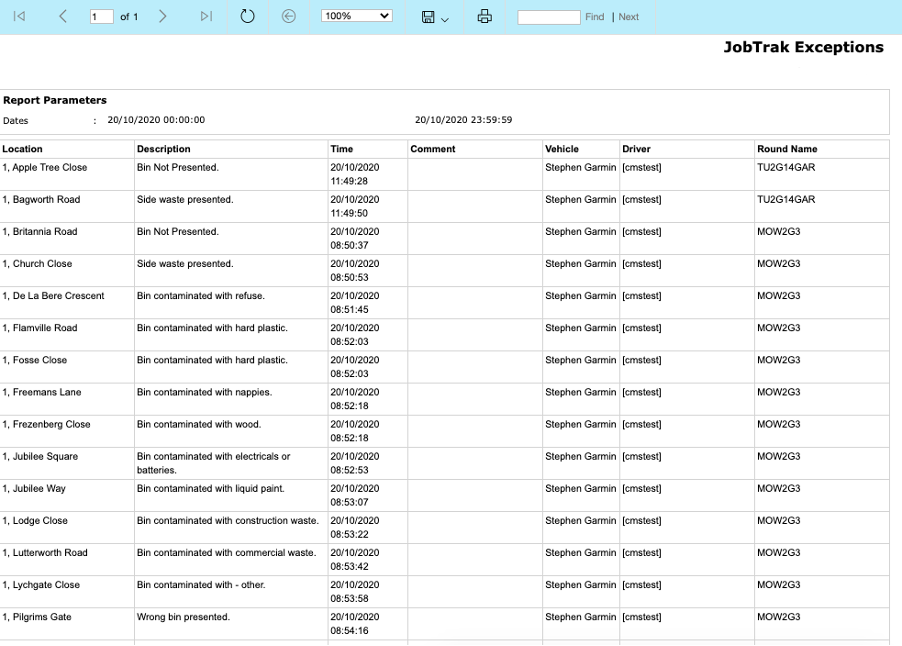
From this window you can export the report into various different file types by clicking on the save icon at the top.