IMPORTANT: Please note that JobTrak v4 is subject to change during the BETA test process.
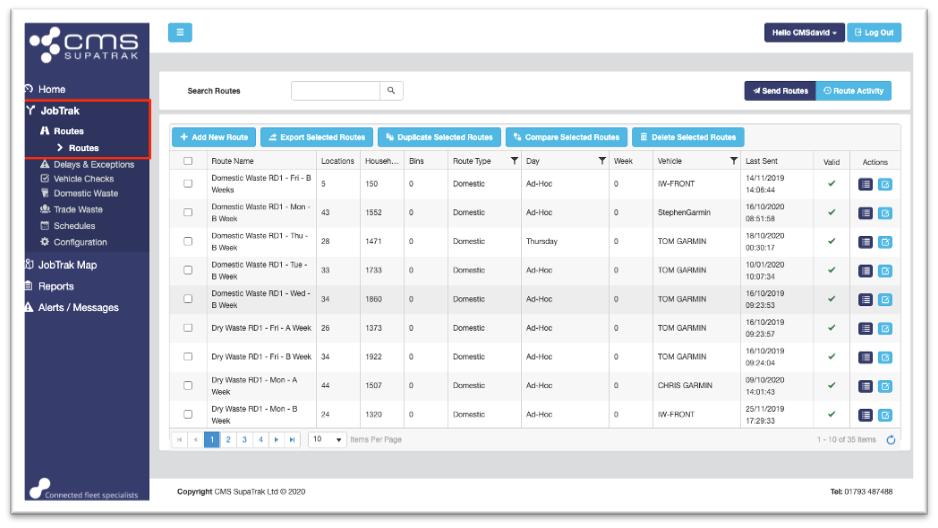
To re-allocate part of a JobTrak route to a different vehicle, users should navigate to the ‘Routes’ section by using the menu at the left-hand side of the screen.
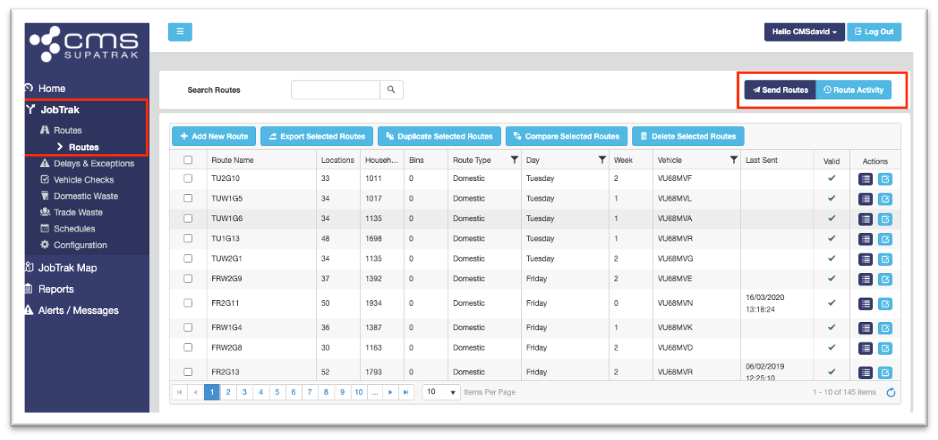
Users can then select the ‘Route Activity’ button to show any routes that are currently active, as well as any historic activity.
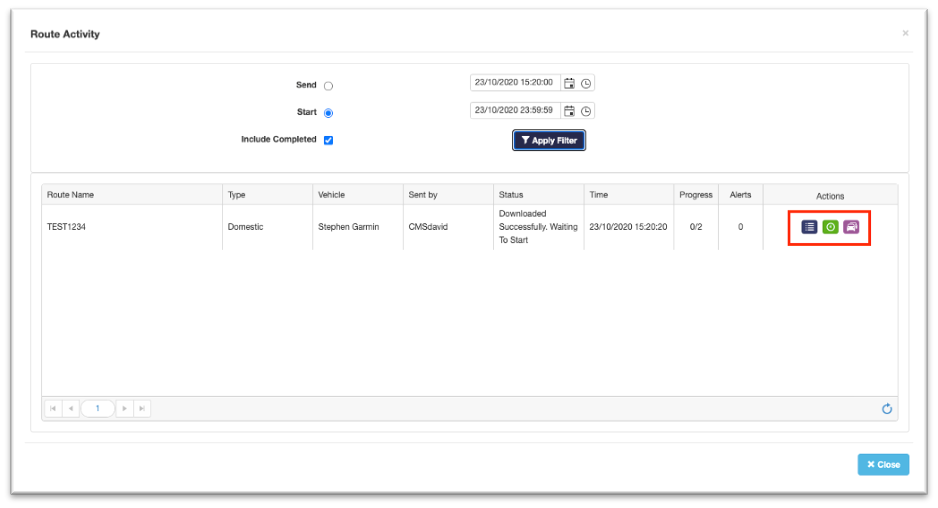
To re-allocate selected zones within a route to a different vehicle, click the blue ‘View Progress’ button to the right-hand side the row. This will show each street’s status, whether completed or not.
To re-assign part of the route, use the tick boxes in the pop-up window below, next to each zone you wish to re-allocate. Once happy with your selection, click the ‘Re-allocate Selected Zones’ button at the top of this page.
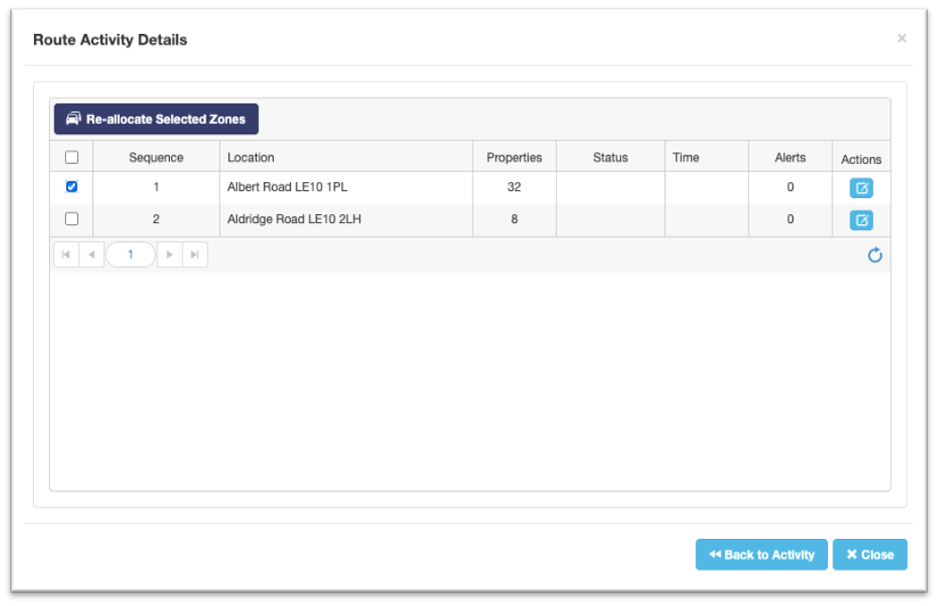
This will show a drop-down list of your routes, select the route that you would like to re-allocate these zones to and click ‘Confirm’.

This will create a new route and send it to the vehicle assigned to the route you chose from the drop-down list. This route will be sent automatically following selection of the ‘Re-allocate’ button, with the following naming convention:
ADDITIONAL WORK – “ROUTE NAME”