IMPORTANT: Please note that JobTrak v4 is subject to change during the BETA test process.
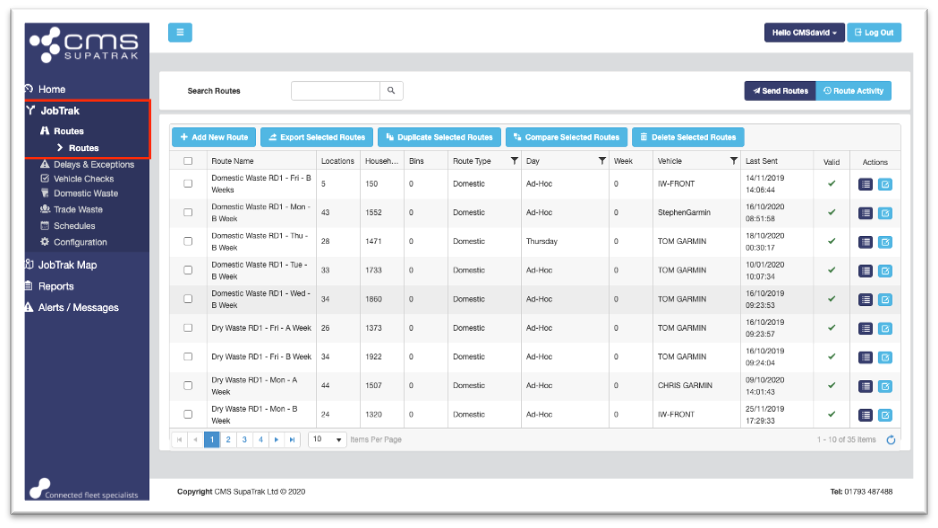
To re-allocate a JobTrak route to a different vehicle, users should navigate to the ‘Routes’ section by using the menu at the left-hand side of the screen.
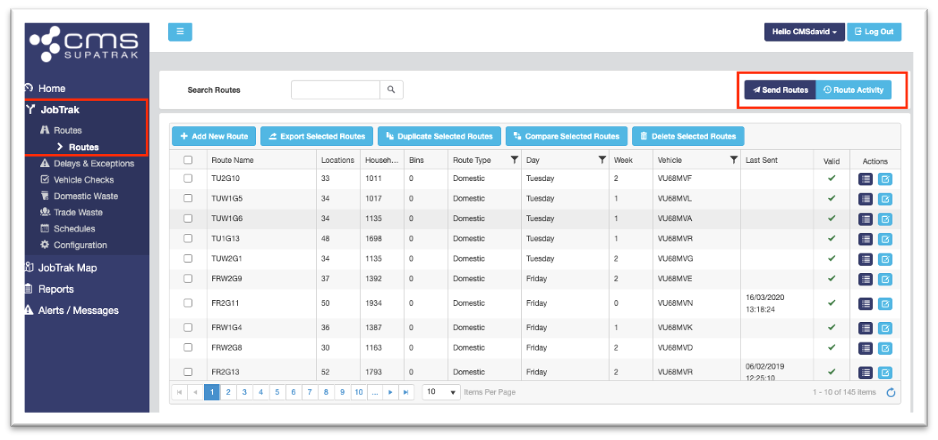
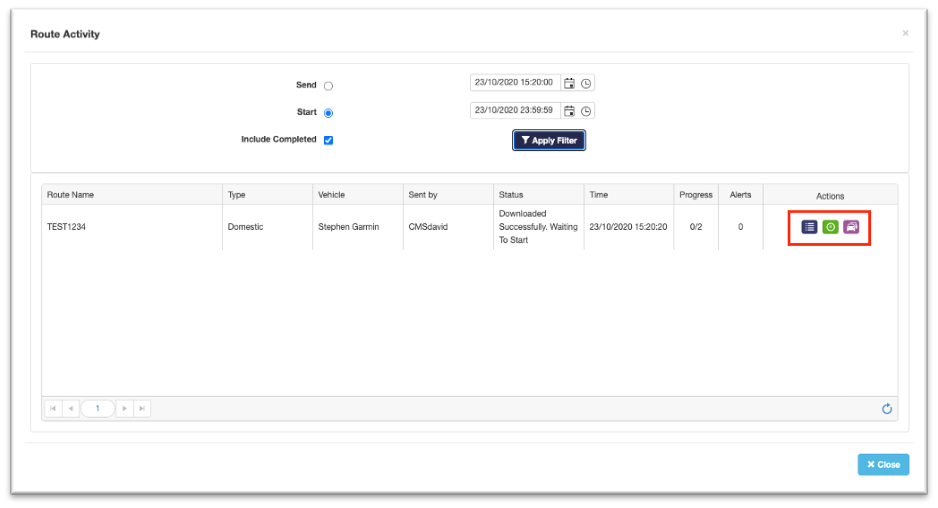
Users can then select the ‘Route Activity’ button to show any routes that are currently active, as well as any historic activity. To view historic route activity, use the date and time boxes included within this pop-up window.
To re-allocate a route to a different vehicle, click the purple ‘Re-assign vehicle’ button to the right hand side of each row. This option is only available for routes that have not yet been completed.
Clicking the ‘Re-assign vehicle’ button will show the pop-up window as seen below. From here, select the vehicle you wish to re-assign the route to from the drop-down list.
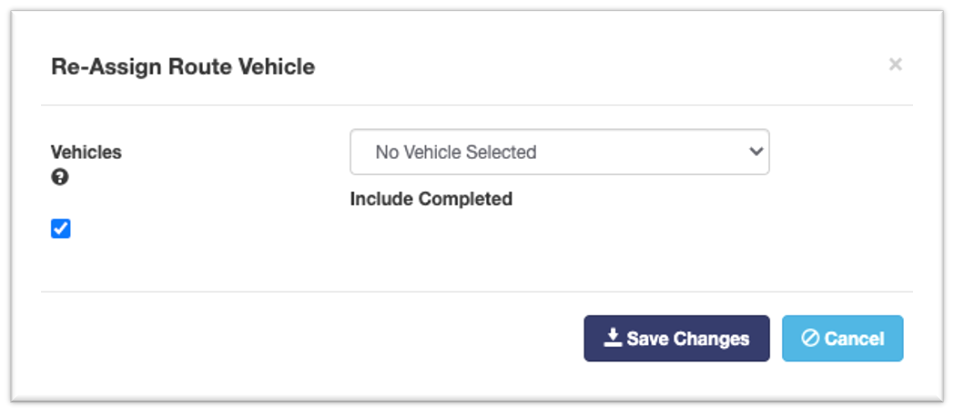
You then have the option whether or not to re-assign all properties, or only those collections that have not yet been completed. To include completed collections, click the tick box next to ‘Include Completed’.
Once you are happy with your reassigned vehicle and your choice whether or not to include completed collections, click ‘Save Changes’ to confirm and send the route to your confirmed alternate vehicle.